CSV vs XLSX for lead lists: which to use and what breaks
By Doug Nielsen, Product Manager · Updated · first published
Use XLSX when a person will open the file and CSV when a machine will read it. Four import mistakes can damage lead data, and each has a fix.
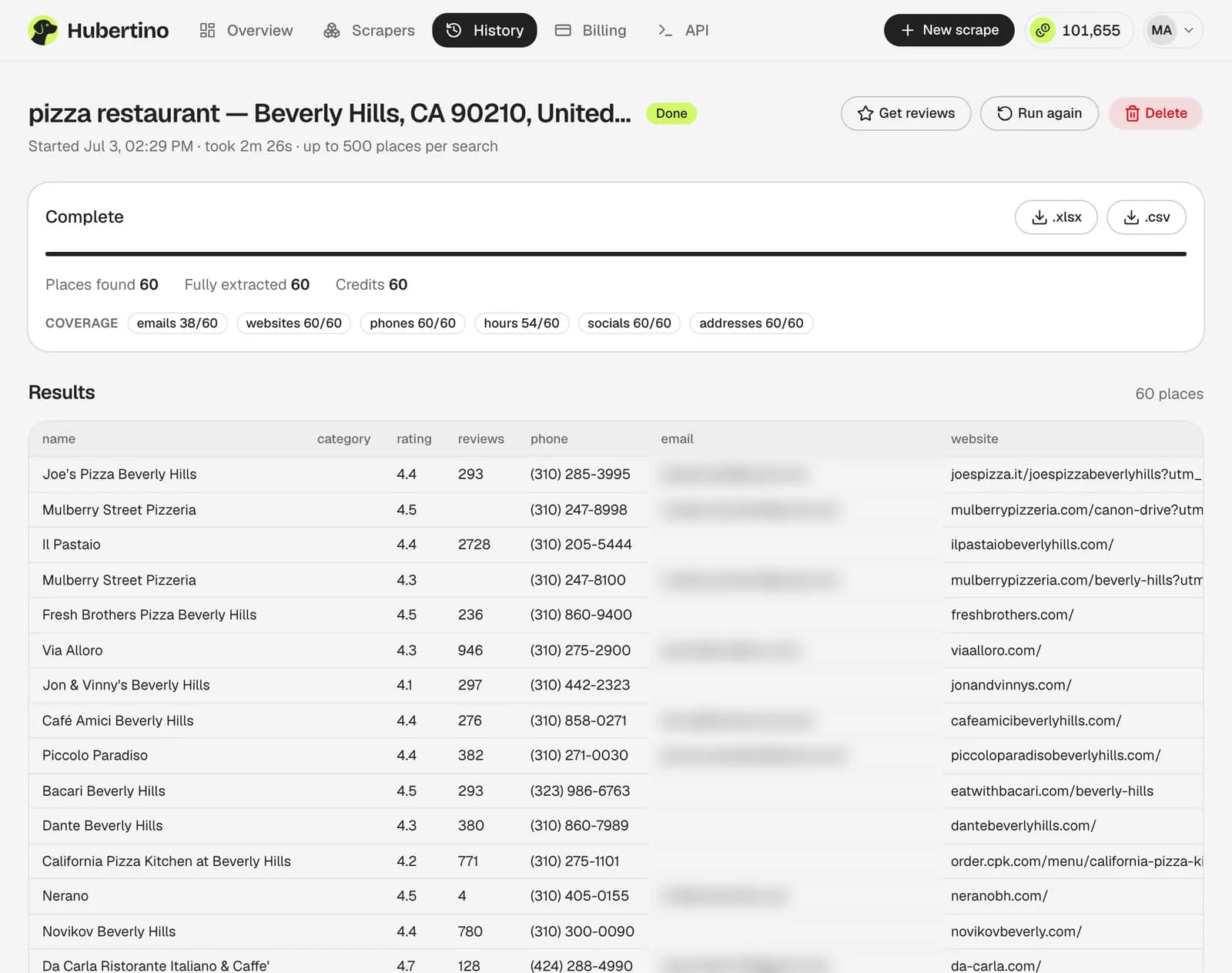
Hubertino exports both with the same 38 columns our Google Maps data extractor defines; keep phone, postal_code and the IDs as text.
Key takeaways
- XLSX for people; CSV for CRM importers, email platforms and scripts.
- Never double-click a CSV into Excel: import it with ZIP and phone as Text.
- Keep the untouched original and spot-check three rows after every import.
On this page6
What each format keeps and loses
XLSX keeps cell types, so the ZIP code “07030” and phone numbers stay text. It handles accents without setup and supports multiple sheets.
CSV is plain text: universally readable, tiny, diff-able and preferred by almost every importer and script, but it carries no types at all.
The four things that break, and the fixes
Leading zeros disappear from ZIP codes
Double-click a CSV in Excel and 07030 becomes 7030. Import via Data → From Text/CSV with the ZIP column set to Text, or use the XLSX.Phone numbers become numbers
The leading “+” is stripped and long numbers can flip to scientific notation. Import the column as Text; if it's already lost, re-import rather than repair.Accented characters turn to mojibake
“Café Rösti” turning unreadable is a UTF-8 mismatch: import with UTF-8 selected. Google Sheets (File → Import → Upload) gets this right by default; older Excel on Windows sometimes doesn't.A comma inside a field splits the row
Proper CSVs quote fields that contain commas; a naive split-on-comma script ignores the quotes. Rows with the wrong number of columns are the tell.
Get the whole list in one job
- 100 free credits
- No card required
Choosing per destination
| Destination | Format | Why |
|---|---|---|
| A client, a colleague or your own review | XLSX | Freeze the header row and you're working immediately. |
| A CRM or email platform | CSV | Importers expect it; set phone and ZIP to text when mapping columns. |
| A script or data warehouse | CSV, or the REST API | The API returns typed data, no encoding negotiation. |
Two habits that prevent most of the pain
Keep an untouched copy of the original export: once a CSV has been opened, autocorrected and saved in Excel, the damage is invisible.
Then spot-check three rows after every import; thirty seconds catches every failure above.
- An accented business name
- A ZIP code with a leading zero
- An international phone number
Common questions
Which format does the export default to?
Is there a row limit?
Written by
Doug Nielsen, Product Manager
Doug works on Hubertino; the guides on this site are published under his name. Last updated .